
 English
 Français
Create your workspace
Create your account, then your workspace. A guided project with example tasks is ready for you to explore the interface at your own pace.
Getting started, capacity, calendars: everything you need to read your team's workload at a glance.
Five steps to go from creating your account to seeing your team's workload at a glance.
Create your account, then your workspace. A guided project with example tasks is ready for you to explore the interface at your own pace.
Every member specifies their hours per day and per week, including part-time and 4/5 schedules. This is the baseline that makes overload detectable.
Sync is two-way: your meetings appear in the schedule and count towards each member's workload.
Tasks without dates wait in the "Unscheduled tasks" panel. Add an hour estimate, then drag them onto the schedule.
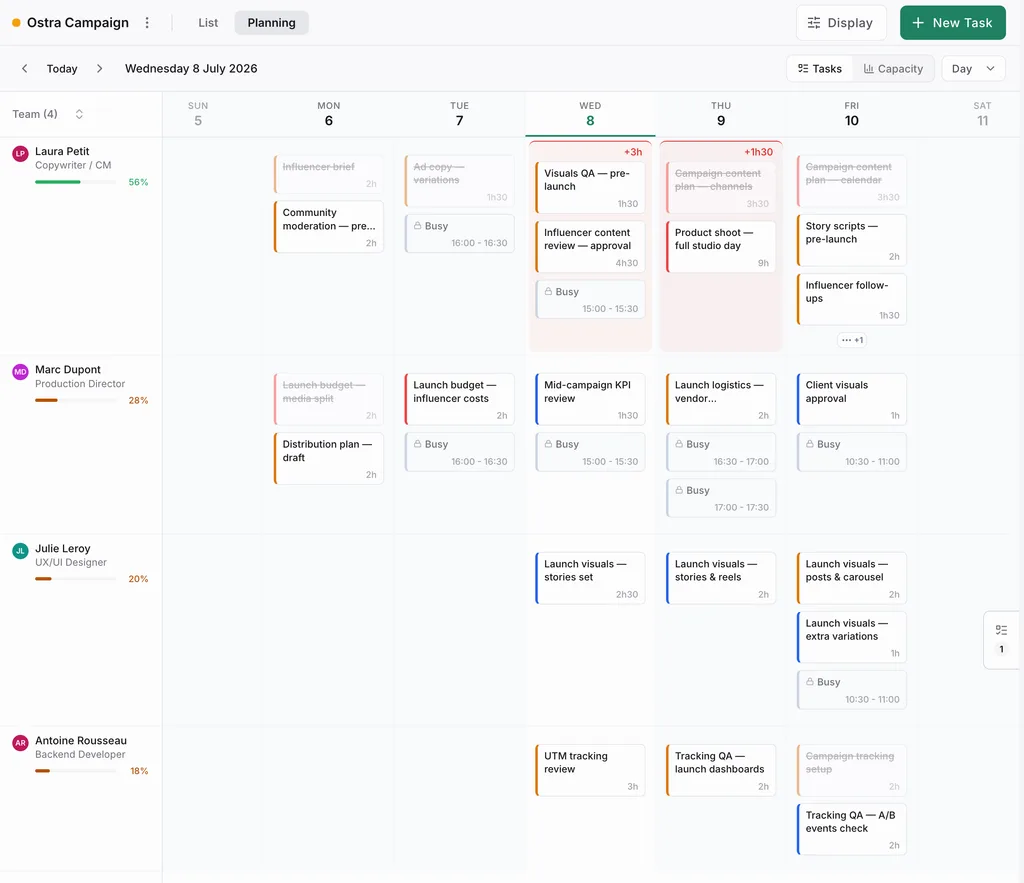
Switch the schedule to "Capacity" mode: each member-by-day cell is coloured by workload. A badge shows the overload as soon as a day exceeds capacity.
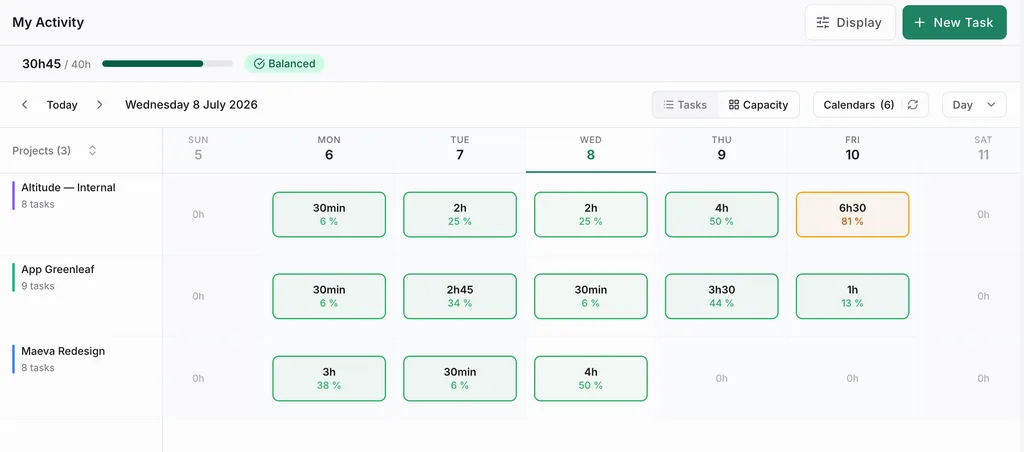
Understand how Planiflow calculates workload and what you can do when a day overflows.
Scheduled tasks + synced meetings, compared to each member's capacity, day by day.
See the answer in the FAQ →Move tasks to a day with available hours, or explicitly accept the overload.
Four cell states: available, optimal, busy, overloaded, across five time horizons from day to year.
Hours per weekday for each member, and hours allocated per project, aggregated in the dashboard.
Connect Google Calendar and Outlook, and understand two-way sync.
Authorise access, choose the project to sync, and your events appear in the schedule.
Same principle as Google: OAuth connection then pick the calendar and linked project.
Planiflow syncs only the information required for planning in order to preserve your privacy.
Scheduled tasks in Planiflow can be pushed to Google Calendar or Outlook.
Bring your existing tasks into Planiflow from a CSV file. You match your columns, you confirm who is who, and Planiflow creates the tasks.
Asana, ClickUp and Notion export to CSV; Monday exports to Excel, which you can simply save as CSV. A spreadsheet saved as CSV works just as well. Asana and ClickUp exports are recognised automatically; for the other tools, the wizard has you pick the columns one by one.
Titles, descriptions, statuses, priorities, dates, estimates, tags and subtasks come along. Assignees are suggested for matching with the members of the project, so add the people concerned to the project before importing. Tasks missing an estimate, dates or an assignee land in the Unscheduled tasks panel, ready to be placed.
Each import feeds a single project, with up to 500 rows per file: beyond that the file is refused, so split it before uploading and import the files one after another, up to 5 imports per hour. Only workspace owners and admins can run an import.
The file is read directly in your browser. Only the selected rows are sent to our servers, for the preview and then the import. Nothing is stored until you confirm.
Short answers below link to the full responses: no duplicated content from the homepage.
Still have a question? Write to us: a real person on the team will reply, and we read every message.